
The iPhone calendar is a mini version of iCal, the calendar application that comes with Mac OS X.
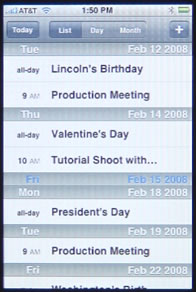
There are three main views for the calendar: List, Day and Month. The list view simply takes all the events in your calendar and displays them one after the other. It usually start by showing you today’s events, but you can scroll up or down with your finger to see earlier or later events.
The next view mode is the Day View. This shows you only events scheduled for today. You can use the arrow keys on the top left and top right corners to move from day to day. You can also scroll up and down with your finger to see events earlier or later in the day.
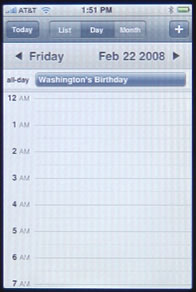
If you are viewing the current day, the screen will automatically start with the top of the screen close to the current time. Otherwise, the screen will adjust to show the first event. Any all-day events will be shown at the top of the screen, before the timeline of events.
The monthly view shows the entire month in standard calendar format. The current day will always be shown darker than the rest. Under the calendar will be a shortened list view of events for the selected day. The selected day can be the current day, or another day of the month.
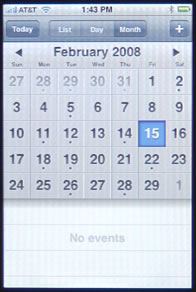
At the top of the screen, you can use the arrows to move from month to month.
Always present at the top of the screen in all three views is the Today button. This will take you back to the current day in any view. There is also the + button, which allows you to add an event.
When adding an event, there are a variety of screens that you must use, starting with the main Add Event screen. From there, you can go to the Title & Location screen, the Start & End screen, the Repeat Event screen, the Event Alert screen and the Notes screen.
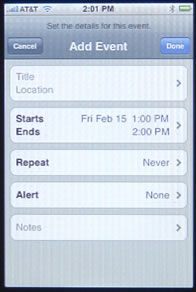
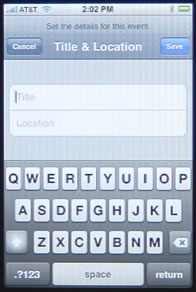
Both the Title & Location screen and the Notes screen use a keyboard to allow you to enter information.
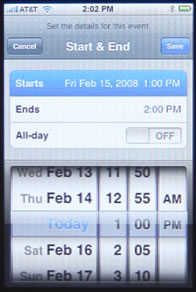
The Start & End screen uses a scrolling clock interface to allow you to choose each time. You can also turn All-day to On. If you do, the scrolling clock interface only lets you set the start and end day, not a time.
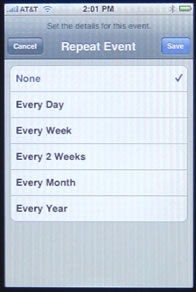
The Repeat Event screen lets you select None, Every Day, Every Week, Every 2 Weeks, Every Month or Every Year. For instance, if you select Every Day, the event will appear on every day from the current day forward.
Also, if you select to have an event repeat, a new option of End Repeat is added to your main Add Event page. This allows you to choose a date on which the repeating ends.
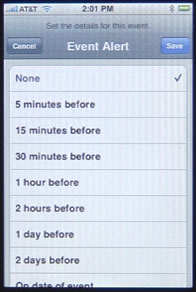
The Event Alert screen allows you to choose a variety of times to show you an alert: 5 minutes before, 15 minutes before, etc. If you choose an alert, the main Add Event screen will now allow you to also add a Second Alert.
The Notes screen allows you to add additional information about the event.
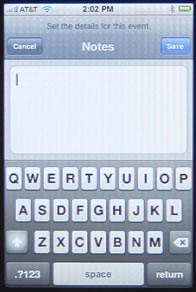
All of the screens include a Save and a Cancel button. The Save button on all screens will take you back to the main Add Event screen. So adding an event consists of a sequence of going to each of the screens and pressing Save to return to the Add Event screen. Pressing Cancel instead, will return you to the Add Event screen, but not save the information you entered.
On the Add Event screen, you can compete the event by pressing the Done button.
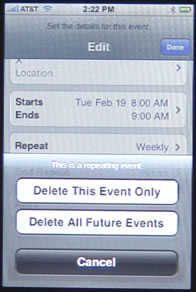
To view any event in the calendar, navigate to the event using one of the three views. Press the event to go to a screen with all the event information. Then you can press on an Edit button to go to the Edit screen, which is identical to the Add Event screen except for the red Delete Event button at the bottom of the event, instead of the Cancel button at the upper left.
The main way many people use the Calendar application is to enter their events using iCal in Mac OS, and then sync with their iPhone using iTunes. The sync works both ways, taking changes made on the iPhone and uploading them to the Mac.


When you have a calendarentry with a telefon Nr. Is there a possibility to make a telfoncall directly from the calendar like you can do with a Palm Handheld.
Too bad it doesn't tace over the colors from Outlook and you can not specify the Time Alert by minutes..
One of the crummy things that the new version 2.0 lacks is a way to customize the ALERT sound that the iPhone uses to remind you of an event. I currently haven't found an OS-X based solution for this.. There is however a PC based 3rd party application to assist in this.
Sadly, the alerts are very quiet and hard to get your attention. I wish Apple would consider updating this portion of the iPhone software quickly.
The lack of a user friendly was to enter and manage appts on the iphone is a huge weakness. I've got a Palm OS PDA with Datebk6 on it that has been around for years and makes data entry a snap through templates and icons. It would be great if someone could write an app to allow for a more robust calendar.
Is it possible to add options to the Event Alert?
The most warning I see is "2 days before"
I want weeks of warning for my families birthdays so I can have time to send them a card etc.
Overseas mail takes a little longer than 2 days!
Thanks
Doghair: You have many more options in iCal on your Mac. So I would just set up these birthday reminders there. You can set it for as many days before as you like. Then it should sync with your iPhone. You can also choose an option to get an email sent to you as a reminder, which may come in handy in these cases.
I agree with Stephen. How could any company, much less Apple, market a gadget with so many shortcomings. I bought one this past weekend, never imagining that it didn't have a way to search old records in the calendar. What a joke! This thing is a toy, not a tool. Palm's products have had these features for years. Unfortunately, their new gadgets keep breaking. Another Palm is not an option. I'm debating returning my iPhone before my two-week return period is up. But I'm not sure what to replace it with.
Maybe there is a way to do this that I am overlooking- but I wish there was more control over repeated events. For example, what if you have a task that happens 3 times a week (like entering a class schedule). Right now you have to add new event for each of the days- as you only have to option to repeat every week, and no option so select other days in the week.
kwame: You may want to consider setting the event in iCal on your Mac (or equivalent on a PC) and then just syncing. You only have limited options in the iPhone interface, but a ton of options in iCal.
I am very disapointed with the iPhone calendar,. I have yet to find one that I can use on the iPhone that allows a moth per view with a differeing details/icon of each days events. Every one of my days has a dot on it... but as a shift worker I need to know which shift it is that I am working on that day at a moth per view. Please fix.
I add my class schedule from the desktop...I choose custom from the repeat menu and then choose weekly, it then allows you to pick the days you want to repeat on. I then put the end date on the last day of the semster.
Is there any possibility to view the calendar in a week (7 days) view? Or can it be added to the current available view types?
Filip: Only List, Day and Month are options. But what about the List view? That should fill any need that a Week view would.
Let me echo many of these comments: I bought the iPhone in part because I wanted to combine phone and PDA, but the Calendar app is UNUSABLE if you actually need to run your business around it. I absolutely hate those little odometer wheels for time (cute, but awkward and slow.) With my old Palm, I can enter an appointment by picking a name out of my contacts, set colors and icons and a reminder in 10-12 seconds. I can't break a minute to do the same operation with the iPhone (important if you have someone standing there or waiting on the phone). Worst part is that it appears that Apple isn't allowing 3rd party developers into the calendar functions. Come on Apple, either fix it or get out of the way.
DSF - I agree, being a long term user of Windows based mobiles and prior to that palms - I love my Iphone but hugely dissappointed in the Calendar and Task functionality for the same reasons as you specifically the amount of silly screens that you need to use to enter one meeting is hopeless. Have tried addtional apps to see if I can fix but no luck yet.... As a result I have gone back to a paper calendar YUCK.
What I find that sucks is that I have meetings monthly that occur on the 3rd Tues, or the 2nd Mon. and I cannot set up repeating events with reminders, which screws up my ability to transition from longtime Palm Treo usage to the iPhone. I see there is an app called SaiSuke which might be helpful but haven't been able to try it yet.
Betsy: Do you have a Mac as well? If so, you can set those up in iCal and then sync with your iPhone to bring them in.
I personally use Google's calendar through the browser (classic view?). The repeat options and different views are nice, it has color coding, you can see personal and work calendars simultaneously as well as hide them to view one at a time. My favorite thing about Google's reminders is the text message reminder.
Hey Im having major calender issues with my iphone4 i just got. I have a 10wk work schedule that I would like to repeat. I dont have a mac computer. I have been told google calenders has custom repeat options but i cant seem to find out how to set that up. If you can help please email me.
Thanks
mike
You should be able to set that up in Google calendar, yes. Just take the time to learn the ins-and-outs of it and you'll figure it out.
Is there any way to get something to repeat EVERY 4 WEEKS? Monthly is NOT the same. I don't understand why the calendar function arbitrarily chooses 1 week or 2 weeks only, and doesn't let the user choose?
"Monthly" does not help, for example, with birth-control reminders, since those are done by weekly cycles, not random 30 or 31 or 28 day cycles - and that is a big deal for everyone involved.
If anyone's found a way around this "monthly" vs. 4-week dilemma, please let me know. Thanks.
Hey hp. I was trying to set up the same 4 week reoccurring event for my birth control. I looked all over to find a solution. I learned that you can download NuvaTime (from Nuvaring's website) onto your desktop and then you can setup text reminders. (These ideas are if iCal doesn't work.) The best way I found to add a four week reoccurring event is to add the event into your gmail calendar (if you have gmail). My gmail and iPhone calendar are supposedly linked. It works wonderfully! I hope either option works!
Hey hp, there is now an EASY solition to this, and it doesn't require you to own a Mac.
Assuming you have update your phone's software to iOS 5, you will have the option to use the icloud to back up your calendar, as well as synching to a calendar in Outlook, google etc.
If you haven't down it already, turn on the iCloud functionality in settings, and allow the cloud to back up your appointments.
Then all you need to do is login to http://www.icloud.com and in calendar you can create an appointment and there is the option to reapeat the appointment every x days, x weeks or x months etc.
Very simple, took me just a few minutes to set up all my 4 weekly appointments.
Best wishes,
Ed
hp: You can definitely do that, just use iCal on your Mac and you can create something that repeats every X weeks. Then sync with your iPhone.
thanks hp, I was casting around for an app, taking everyone's complaints about iphone calendar at face-value
regarding DSFs odometer wheels: going back or forwards by 10min increments is faster than spinning to get there.
with measured taps I find it's quick enough..
I love my iPhone but it is definitely not a replacement for my PDA or even my clamshell cell. The calendar is useless to me bec of the time it takes to enter an event and because it doesn't give you the option to select times that are not in even 5 minute increments. Many of my family's appointments and classes start or end at odd times like 9:52 or 2:48. I don't want to round these times up or down! This is a mini-computer, I should be able to enter whatever time of day I want. And I don't have a Mac or use iCal...why should I have to, just to get my iPhone to do what every PDA out there already does on its own?
I see that it is mentioned that alert option will now allow you to also add a Second Alert, for example I want to be reminded 2 days before , than 1 day before and than 30 mintues before. I want all three alerts. can I do that?
You can only add up to 2 alerts via the iPhone interface. Using iCal on your Mac you can add more.
I have an event that repeats monthly, but not the same day of the month. It repeats the 2nd Thursday of the month. I also have an event that repeats the 3rd Saturday of the month. iCal doesn't allow for that type of repeat.
These issues are driving me crazy. Also driving me crazy are the comments from the Mac people. "Just use a Mac" isn't feasible for most. If anyone is complaining its because they are using a PC and Mac's teams don't care nor bother to make their products PC friendly. Personal usage is mostly PC which is most of the people who have or use Iphone. I think it's sad that without the advantages of other people doing apps this phone is pretty useless.
If anybody finds a good iphone calendar and/or task app. Please let us know! Thanks.
Using a Mac doesn't fix the problem of a snooze ability on the phone. Even if I had a Mac and corporate email and calendars were coming from Outlook, I still can't use snooze because the mulitple alerts only exist for items created on hte phone or in iCal.
This is not a useful device for business.
I got my Iphone stolen. Imported my Outlook calendar on Iphone and added new events. Now I desperately need to find the calendar on my PC. Is the calendar on the PC or just on the Iphone?
If you imported it on to your iPhone then you should still have the original on your PC, right? Did you sync the iPhone back to the PC periodically? If so, I believe the calendars should have stayed in sync. But I don't use a PC or Outlook calendar, so I'm not sure.
I have a Palm TX which needs replaced as the touch screen is losing it's sensitivity. I love the iPod touch and the Apps available but will only buy one if I can keep a back-up of the calendar. Losing everything in my calendar would be a disaster!! I also have a PC rather than a Mac and had hoped to use Outlook 2007 - it says it can import iCal files. Has anyone managed that successfully?
I'm not sure about Outlook syncing with the iPod Touch as I don't use Outlook. But keep in mind that your iPod Touch will back itself up to iTunes (on a PC too). So if you lose the iPod and replace it, you can do a full restore from your backup. Just make sure you sync it to your PC often (normally you would to transfer new music, podcasts, apps, etc) to it backs up often. Another option is to get a MobileMe subscription which syncs your calendar (and other things) continuously over the air. Then you can access your calendar even on the Web at your PC. MobileMe works better if you have a Mac, but it is useful in this respect for everyone.
If you're syncing on a Windows machine, then your ONLY option for syncing calendars is with Outlook. I've done it and it works (most of the time). I agree with the other posters; the usability and functionality is no match for my 10yr old palm...
This app would be alot better if there was some more options for repeating events. Like, 3 weeks four weeks.
Being unable to schedule meetings that repeat monthly by day (eg 3rd Tuesday) is a huge annoyance and one I'm amazed Apple has made NO effort to fix.
Yes, I KNOW I can do it in the computer and then sync, but that defeats the desired convenience of scheduling it while I'm actually at the meeting or on the go.
My Palm Pilot had that ability 5 years ago, my brand new iPad 3G STILL can't do it.
The only logic I can see is that Apple wants to FORCE us to us their Mobile Me subscription service at $99/year.
I just got an I-Phone and I love it except when I try to use the Calendar. I keep track of all my work (back to 2003) but am unable to search for records more than 1 year old. Is there a setting I can change to search the entire Calendar? Reading the prior comments, it doesn't sound like it, but I'm hoping I'm missing something.
Perhaps only the last year is being synced to the iPhone? Maybe check your sync settings for calendar events -- though I don't remember seeing an option for it. Honestly, I never search past events, but I can see where it can become useful. Maybe there is a more comprehensive calendar app, or switching to Google Calendar is an option?
All the data is probably there (mine is), but it seems to only return results for the past year. Once again my 10yr old palm outshines it (can search data in ANY field, and no arbitrary time frame limitations. ...If only the digitizer wasn't dying on it...)
how do I bring back the calendar for the Iphone?I had it before but somehow it got disappeared.
You shouldn't be able to remove the Calendar app from the iPhone. Are you sure it isn't there? You may want to take it in to the Apple Store, or try restoring it to factory settings, etc.
Love my iPhone, love my iMac... but HATE the way I can't even see todays calender events on the log-in screen like I even could on my old simple Nokia 6300 :(
hey I'm with you - i am using 10.5.0 os and if i upgrade you can't use the palm tx I do hope someone comes up with that software aplication
I need to know how to make Some appts. to be the 3rd Thursday of the month, Not repeated "monthly". I need the Option of "3rd Thursday" or "monthly". The 16 of each month will land on a different day each month so I cannot repeat this monthly, it is not right. Please show me how to change this.
Thank you!
There's no way to get that detailed on the iPhone. You can definitely do it in iCal on the Mac, though. And then sync with your iPhone.
Hi Gary,
Can I get the source code for this iphone calendar.I would really appriciate your help.
I am little new in this field.
Thanks in advance.
Thanks,
Satya
Source code? This is Apple's built-in Calendar app. The source code is not available.
I can't open any of my iPhone 4 calendar events in EDIT mode to change/delete them? Any idea please ?
Thanks
Check to see what type of calendar these events belong to. Perhaps they are in a calendar that you can't edit, like one you have subscribed to instead of one you own.
I'm very unhappy I can't put in 4 weekly repeated dates. I get paid 4 weekly and would like to add my payday to the calendar. How can I do this?
Do it in iCal on your Mac using the custom settings. Then sync with your iPhone.
How do I delete an "ALERT" on the Iphone 3 calendar. I select "none" when placing an item on the calendar. Then, I got back in a few days later and the "ALERT" is still there. These alerts go off in the middle of the night causing me distress thinking it's my alarm clock going off ! I delete the alert, but it doesn't stick. H E L P !
It sounds like something else is putting the alert back. Is the alert from your iCal calendar? MobileMe? Gmail? Exchange? Figure out which of these you might be using and try to delete it at its source.
How do I add or remove a calendar on the iPhone 4?
You don't. You add or remove them in iCal on your Mac (or the equivalent on Windows). Then you choose which ones to sync in iTunes.
When I havent got a Mac with 10.5 on, but have got iTunes on XP.
Is there a way to do a monthly reminder where it's not the same day of the month. For example I can do every 17th of every month, but I can't do every third Thursday (regardless of what number day it falls on). Can this calendar to that?
You can set that up in iCal on your Mac, and then let it sync with your iPhone. iCal will let you set up reminders like that.
can any one tell me the calendar file extension for iphone and android phone
I had an IPhone 3G and MobileMe, using Outlook as my PC calendar; this doubled my calendar entries. Then switched to IPhone4; now get double entries when I sync, but if I replace whole calendar to IPhone, it is perfect, back to 1998, with no duplicates. But as the date changes at midnight, all calendar entries over one year old are deleted from the phone, and can't be recovered without re-sync'ing. What's going on? (PS. Took MobileMe off long time ago.)
I don't think the calendar app on the iPhone is meant to keep any events old than a year. Why would you need those on your phone?
We use past years for travel data such as where did we stay in this town last or where did we eat. Searching was no problem with the Palm. Iphone calendar needs updating to allow searching all of the calendar.
I am having the same issue and don't know how to bring back all my records for the past year...Huge disaster! Lots of information lost. Is there way to recover it?
Oh, great! Fixed it! All my events for the last year are back!
I have always been able to set a second alert on my iphone 3 and 4.
My wife has the same phone I have and to date she still cannot seem to have the option from the calendar to create a second reminder "alert". she is driving me crazy, If anyone has a idea for this fix or how to set up a second alert PLEASE HELP.
It might be dependent on the calendar system. For instance, an event in a MobileMe calendar may have different properties than a Gmail or Exchange calendar.
Having the same problem with my iPhone4. Started after I upgraded mobile me calendar.
Is there a way to retrieve/search for past calendar events on the Iphone4?
I believe events in the past are removed in a pretty short time. But if it is still there, then a general search using the home screen search functionality will turn up events as well as email, music, etc.
The Iphone calender, along with all the other calender apps are far too complicated, and waste time. Someone should design a calender app which shows a page a day, where you enter a to do list etc,just like a daytimer...arrows to go back or forward, scroll up or down...blank pages,month view to select a particular day....perhaps a timer/notifier, and a send to function to share with your secretary...never mind rotating wheels, "events"and all the other junk. I've been using a daytimer for years, and simple is more efficient. Its easier to just open my daytimer than fiddle with all this techno crap,'though i'd like something like this on my iphone.just launch calender, see the current day, and enter my to dos, then cross them off when accomplished,not delete. for those who wish more categories, the app could have a selection of functions to choose from,sort of customized...wish some wizard would build one like this...one of the best design mantras is KEEP IT SIMPLE, STUPID. Thanx for your work...cj
I found a way that you can get around the repeat schedule and alert limitations of the native Calendar app. There's an app called Calendar Event Pro for $0.99 that will let you schedule advanced events. (i.e. an event that repeats on the third Friday of every month).
http://itunes.apple.com/us/app/calendar-event-pro/id425820450?mt=8
ive noticed that some of my dates on my calender were completley erased.
any suggestions why it might have happened.?
can i retrieve them in any way?
help!
No way to know what happened without knowing all the details and looking at the iPhone first hand. Is it a synced calendar? What type? From where? Where else is the calendar located? Lots of things to consider. Probably impossible to piece together what happened.
please, please, please make the iphone calendar app like the old palm....the rolling picker is silly and cumbersome...and the fact that only one year of calendar history is available is just silly. please, please, please make the iphone calendar appl like the old palm.
There's a $0.99 app called Calendar Event Pro that add all the repeat and alert functionality that you would ever need. And it works with the native Calendar app so that you don't have to have a separate calendar.
iPhone/iPod Touch: http://itunes.apple.com/us/app/calendar-event-pro/id425820450?mt=8
iPad: http://itunes.apple.com/us/app/calendar-event-pro-2/id443037531?mt=8
No to-do list, but the best calendar app by far (and I have tried many) is MiCal. Still miss the coordination of the calendar & to-do list on my palm though, and the superior search capability. Ridiculous that Apple can't or won't accomplish what palm was able to do 10 years ago. Feeling burned. BTW MiCal (means "missing calendar", the one that should have been built in) syncs perfectly with the native calendar.
News flash! MiCal's newest update includes a $0.99 optional add-on tasks function (allows date due / priorizing and appears on the calendar list view "dashboard" page). Looks like this is as close as it gets to the great palm functionality.
Still waiting for the great calendar search. (Exactly when did I last see the eye doc / have that surgery / start my job...so I can fill out this form? How many times did this group meet in the last two years...so I can write this report faster?). Miss it at least once a week.
I entered an event in my calendar on my iPhone 4 and set it so that there was no alert. When I look at the calendar on my iPad the entry has a reminder attached to it. How can I undo this -it's annoying because my iPhone alert goes off in the middle of the night because the iPad creates these reminders that I don't want. Can you help resolve this problem?
How is the event syncing? Google? MobileMe? iTunes docked?
I think google. I checked the google calendar and couldn't find any place to set alerts. How do I know how it's syncing? The entry is attached to my gmail account
Thank you.
Maybe there is a default alarm setting for Gmail calendars. Not sure. But if it is syncing through Gmail, then that must be where the problem lies.
I have added some birthday/marriage day events of my family members in my iPhone-4 with alert time = 2 hours before, Start-end = All-day, Repeat = Every Year, Calender = My Yahoo address. However I am not getting any alert 2 hours before i.e. at 10:00 pm. It was working with my previous iPhone-2. Here the new addition is Calender, which may be the cause. Can any one help me?
Same problem. Just downloaded the iphone app called "week" and it looks like a good solution!
In addition to my previous query, I want to add that in the settings, Time zone support is set to Off and in the sounds menu, calendar Alerts = ON.
I have tried with a new test alert with alert time = 2 hours, start-end = Jul 8 4:00 pm to 5:00 pm, all other parameters are same as before. It works. I got alert message with sound at 2:00 pm. However after changing the start-end to All-day on Jul 9, it does not works.
Hi
I use my iphone calender as my only calendar and have no other calendar to sync with, (and for sometime normally no computer to backup with...). I often get invitations and calendar posts sent to me as an iCalendar file and that way adds them to my iphone calendar. HOWEVER those reminders can not be removed! When I add a reminder myself there are allways a button I can push to change or remove the reminder, but it doesn't show when I get it sent to me as an iCalendar file. How can I possibly remove them??? The reoccuring events are the most annoying ones...
Hard to say without see it of having the exact same conditions. Have you stopped by an Apple Store to show them this at the Genius bar?
Maybe consider syncing. You don't even need to do it with a computer. You could create a free Google calendar and then set that up on your iPhone. Then you can always have the option of going to the calendar on the Google site and performing functions there. It is also handy because then your calendar exists in more than one place (in case you drop your iPhone).
Hi.
I'm another 11-year PalmOS/Datebk user who's been cursing his iPhone 4 calender for over a year now. It's a total joke that you can't search for events more than a year old. I need this all the time for looking up old business appointments or at the doctor to look up when I had my last something-or-other.
I know this is a limitation of iOS, not the calendar app since Pocket Informant and miCal can't either.
So, here's the big question: has Apple fixed this in iOS5? I'm sure tons of folks know from all the betas out there. Can someone please tell us!
Thanks
We won't know until iOS 5 comes out. At least those who do know won't be able to say.
But a simple fix for this would be to use a cloud-based calendar system like Google calendar. You can use it inside the Calendar app -- though you still won't be able to search like that. But then at least you can use the web-based version of Google calendar to search as much as it allows.
Gary - thanks for the reply. I guess we just have to wait. The cloud solution is not at all acceptable. I don't use Google calendar and think it's insane to have have my Apple device connect to the Internet to servers from a different company in order to look up appointments that are already stored in the iPhone!
I'm fairly optimistic. I wouldn't touch an iPhone until the hardware/software of the iPhone 4 and iOS4. I can't believe anyone put up with earlier versions before they had multi-tasking, cut/paste, etc. They have added nice Exchange support and I heard that iOS5 will allow creating calendars on the handheld, which goes along with Job's big push to cut the cord and not need a Mac/PC to have an iPhone.
And of course, I need to add the obligatory "my Palm Pilot 500 could do this over ten years ago!" :)
When I enter times into my iPhone4 into the calendar then view them in my Yahoo! calendar there is a 2 hour time change everytime. Likewise, when I enter times into my Yahoo! calendar and then view them on my iPhone4 there is a 2 hour time shift the other way, everytime. Even if I correct it in one, it changes it to be wrong in the other! Help, I keep showing up at the wrong times!
It sounds like you simply have to set your Yahoo calendar to the correct time zone. I don't use Yahoo calendar, but I'm sure it must be an option they have in the settings.
Why oh why does Apple think it is wise to delete old Calendar events? This is so frustrating as it is not even noted in the manual. Is there any way to stop this happening? Or does anybody know how long they remain on there for? I do not have a Mac or a com payable Calendar application, so was solely relying on this info which Apple has deemed on my behalf sir us to requirements. Grrrrr!
Simply use a free calendar service, like gmail. That will keep your calendar events forever, and you can link to that account in your Calendar app on your iPhone.
My iphone 3 was just replaced. On this new phone the secondary alert option does not appear when I set the primary alert? What do I need to do to get it to appear.
Perhaps the new one hasn't yet been updated? Or, perhaps you are using a different kind of calendar now?
What causes the iPhone and the iPad to mindlessly create new reminders?
I'm using the most up-to-date versions of the iOS and Lion. When I synchronize my iCal with the iDevices (I use USB only) I always get an alert that this will make hundreds of modifications to the calendar on my computer. This happens EVEN when I sync immediately after having replaced the calendar on the iDevice with the calendar from iCal. When I inspect records that would be modified, it always says that the event will get a "New Reminder" alert on the computer after syncing, regardless wether the event already had a reminder or none!
Because I don't want my iCal calendar to get corrupted, I never let the sync proceed, but that means, I have to manually enter all real changes and additions from iDevices to iCal.
What's going wrong?
Hard to say without seeing it. I'd go through all of your settings and accounts and see what calendars are where and clean them up.
I just got the iphone 4s and it does not have the plus sign up top so that I can add an event/reminder. Please help, thanks.
See http://macmost.com/forum-missing-on-ipad-calendar-after-ios-5.html
thank you gary
Hi,
I recently got an iphone 3 and put all my family and friends birthdays in as "All Day Events". But the alert reminds me at midnight. Is there any way to change it so it reminds me at a decent time?
Thanks!
Not sure which iOS you are using, but you should be able to set the alert for 9 a.m. Take a look.
I recently got an iphone 4, when i try and add an event onto the calender it doesnt have an add button, do you know what i need to do?
See this: http://macmost.com/forum-missing-on-ipad-calendar-after-ios-5.html
Just installed new 5.0??? software on my iPhone4. The + button has disappeared from calendar so I can't input events, reminders etc... Noticed a reminder app that popped up. Put in a reminder, but it only allows you to get a reminder on the day? What is happening? I want to be able to put a reminder in to any of these apps 2 weeks in advance and have a reminder beep a couple of days in advance and an hour before the event. Please help!
See: http://macmost.com/forum-missing-on-ipad-calendar-after-ios-5.html
My wife had an iPhone 3G and used the calendar extensively for about the last two years. She refers to previous events quite a bit for scheduling. We migrated to a 4s and restored the 4s from a backup of the 3G. The calendar came over, but only contains the events from the previous 2 months and the birthdays from the previous year. Is there a way to retrieve the historical events back indefinitely? She would really like to be able to keep that data.
What type of calendar was it? Was there any copy of it anywhere else? Like on your Mac/PC or a cloud service like MobileMe or Gmail? If not, then you are probably out of luck. If so, then just go to that more elaborate copy of the calendar.
Thanks for the quick reply. It was just the standard iPhone 3G calendar. She used that to enter a lot of appointments and events directly into the phone. I backed up the 3G phone via iTunes and then when we got the 4s, I activated that using the 3G backup to bring everything over. We still have the 3G phone, but she'd rather be able to bring all of it's calendar history over to the 4s instead of just the previous 2 months worth. She's not keen on having to refer back to the old phone or using another calendar app.
Just a further FYI...the 3G backup worked great in migrating everything over to the 4s. Settings, contacts, mail accounts, etc... all worked flawlessly. Even the calendar worked flawlessly in bringing over the set events to the new phone. The only problem is it seemingly didn't bring over the calendar events beyond two months back.
I think you might be out of luck then. Moving forward, have her use a calendar that is both on her phone and elsewhere. That's how it is supposed to work. You can just have it sync to iCal on a Mac, or use a cloud service like iCloud or Gmail. Then you know all of the events will be around in there forever. The Calendar app on the iPhone is a simple app and it doesn't handle old events very well.
Ouch. Thanks for the help. She's not going to like hearing that. As far as I know, IOS5 with iCloud isn't applicable to the 3G, but I do also have an old 3GS which is updated to IOS5. Perhaps I can sync her 3G calendar onto the 3GS and the iCloud it over to the 4s. Phones all over the place.... Thanks for the replies. Looks like I have some experimenting to do...
Are you using a Mac? If so, just sync it to a Mac and it should create a calendar in iCal from the events in her iPhone 3G. Just make sure to sync it correctly (for instance, don't choose to erase the calendar on the 3G and replace it).
On the iPhone 4s, the all-day events are only allotted about 2.5 lines. I use that space for notes to self, and often have more than 2. On my 3s, the space expanded to fill the number of notes. How do I enlarge the space, or preferably make it self-adjusting depending on how many all-day events there are?
Not sure what you mean by 2.5 lines. With the Notes field in any event (all day or otherwise) you can put much more than that.
Wendy, if you ever find a solution to this let me know. I have the same issue because I use all-day for reminders and usually use more than two in a day.
Hi, is there away of moving all my Calender reminders to reminders? This is in relation to iphone
Not that I know of. Just have to re-create them there.
Who knows how to preset alerts for all events? I have it preset right now for 2 days before, but do not know how to change it to 1 day before. Thanks to ICloud it is driving my hubby nuts! I know I can change them every time I create an event, but I am spoiled by all these gadgets that do things automatically- saves me time and extra clicks :-). Any help?
Sorry, fixed it myself!
I use my iPhone calendar often and have the option of setting two reminders (my husband's iPhone doesn't). However, for some reason, the reminders will flip. For example, if I set my first reminder for "1 day before" and the second reminder for "2 hours before". I'll go in later and find that they've reversed. I ALWAYS double check before saving. I can't figure out why this is happening. As such, it doesn't really benefit me to have two reminders.
I received a calendar event via a webmail system. When prompted via my iphone to add to my calendar I accepted. Unfortunately, now I can't delete the event even though it has already happened. The delete option is not available under this event's detail. Suggestions?
Suggestion 1: Don't worry about it. Just leave it.
Suggestion 2: Do you access your calendar any other way (iCal on a Mac, web site for Gmail or iCloud, etc?). If so, then access it that other way and delete it.
On the calendars start screen I do not have a plus button to add an event...what am I missing here?
http://macmost.com/forum-missing-on-ipad-calendar-after-ios-5.html
This morning I got an email with a recurring phone conference invite from someone in a different time zone. I accepted the invite but it went on my calendar at the wrong time zone. When i opened the message in outlook on my Dell laptop it changed the time of the the meeting to local time and sent the meeting to my iphone calendar as a separate event. Now I cannot access an edit button on the first appointment at the wrong time to edit or delete it. How do i get rid of an appointment accepted from an email opened on my iphone?
Experiment. Is it an iCloud calendar? Log into the web site on your computer and try it.
Is there any way that I can modify the iCal's alert (5 mins, 10 mins, 1 hour, 2 hours, 1 day before, 2 days before) --- I specifically want 12 hours!
Is there any...???
Thanks!
Not on the iPhone. You can in iCal on the Mac.
My calendar app no longer has an edit or delete option. What happened and how do I fix it?
Help! All my dates prior to June 1st are gone! I've never synced my phone with a computer and only use the regular calendar. I have a yahoo calendar but it isn't selected. I don't know why or how this happened! I just discovered it when I went to look up a past date! It had work schedule information in it. Help help what should I do??
You should switch to a cloud-baed calendar if you want to keep old data around. Use iCloud, Gmail or Yahoo.
Help!!! When I try to set an "all day" event on the calendar on my iphone, the only default alert available is "9 A.M". It wasn't like that before the update, and its driving me crazy. Is there anyway to change that? I have tried changing "day starts at" on the preference of ical, but no luck. 9 A.M is too late and I need the alert to go off earlier on an "all day" event... Please help!!!!
Don't use "all day" for those. Set it to the specific time.
I'm so happy as I found the solution!!!
I have mine set to All Events (under Settings > Mail, Contacts, Calendars > Calendars > Sync > All Events), and my calendars have been saved for years, accessible via all my iDevices. I've never lost a single calendar entry that I can recall.
Every time I upgrade my iPhone I lose ALL MY PAST YEAR AND PRIOR CALENDAR EVENTS (example: deaths, funerals, operations and other important events)
I am only left with the most recent years appointments/events.
A calendar should hold all events for ever and ever And never delete them on its own. This is the third time this has happened. It's very upsetting to lose some of those events.
And I had a very computer/phone savvy person do my upgrades for me.
It sounds like you are not storing your calendar events with any sort of service -- but just on your iPhone? Switch to using service (iCloud, Google, Yahoo, Exchange, etc) so your calendar is stored with that service and your iPhone is just a portal to view/edit/add events and not the only place where the calendar exists. This has many advantages, including keeping everything forever.
My work schedule is through Outlook. The events are all labeled as "all day" events. Is there a way to only view all day events in the daily view of the calendar on the iPhone 4? I do not like the list view. Thanks!
I have a problem with the Calendar view with my iPhone 4. When I rotate the phone to landscape view, the calendar changes to display a 3-day view, and I cannot enter/delete anything - there are no buttons in this view. When I rotate it back to portrait, it won't return to the previous view (month - my preferred view.) I tried to find more info about this issue and read this: "A fourth view, similar to the Day view, automatiPhone Calendar is enabled when you rotate the iPhone into a horizontal orientation. One will see the same type of display when one selects Day view, but for three continguous days. When in this view the regular buttons at the top and bottom of the iPhone Calendar display are not visible. Reorient the iPhone to cause phem to reappear." (this doesn’t work on my phone). This is very annoyong - can you help, please? BTW, I am a grandma, not very technically-inclined. TIA
First, when you are in this special horizontal view, you can still add new data -- just tap and hold until a new event is created. You have to hold for a second or three. You can also tap and hold and existing event to edit/delete it.
It should return to normal view when you re-orient the phone. Do you have the orientation lock on? (See http://macmost.com/ios-physical-buttons-and-switches.html)
Is there a way to reply all in the calander invitees (when we are part of the invitees list) to pass a message. Some times it is important to drop a mail to all invitees who are part of the meeting.